A while ago I wrote a blog about how to change the “domain\user or username@domain.com” text in Citrix StoreFront. Now I’ve create a small PowerShell script that can do that for you.
The Script#
The script can be found on Github
Changing the text#
With this script you can change the default text into something else or just empty. 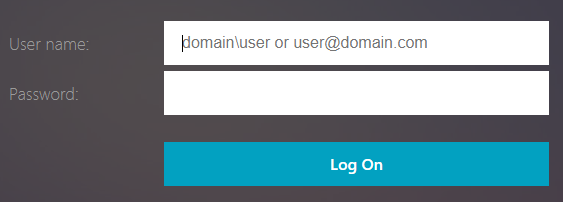
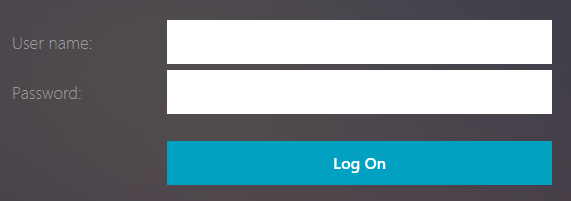 If you run the script by default it will first create a backup if it not already exists, then it clears the text (make it empty). If you don’t specify the “-Store” parameter, a choice will be presented.
.\CtxClearSTFLoginText.ps1 -Store "Store"You can specify the parameter “-InnerText <Custom Text>” with your own text for example “test”:
.\CtxClearSTFLoginText.ps1 -Store "Store" -InnerText "test" -RestartIIS This will be the result after IIS is restarted:
 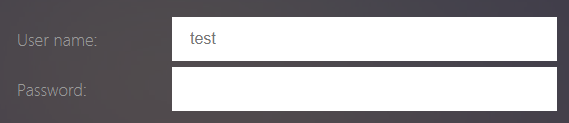 You can choose to let the script restart IIS by specifying the “-RestartIIS” parameter. If you want to do this manually, don’t specify this parameter.
NOTE: Make sure to run this on all StoreFront servers!
As said before, the original files are back-upped before any changes are made, the backup files will get the extension “.orig”. 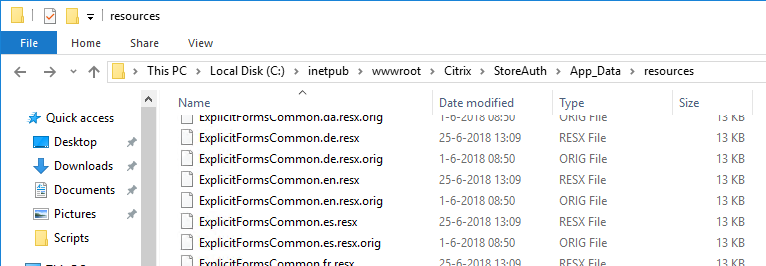
Restore the original files#
If you want to restore the original files, execute the script with the following parameters (again the “-RestartIIS” is optional)
.\CtxClearSTFLoginText.ps1 -Restore -RestartIIS
comments