The following was tested om 3.10+ versions, not sure if it works on older or 2.x versions.
Hide the default text#
You can hide the default text “domain\user or username@domain.com” in the storefront username field.  This can be done by simply editing the “custom style.css” file. This file is located in “C:\inetpub\wwwroot\Citrix\Store>Web\custom”. Replace “<Store>” with your own store name. You need to edit each store separately. Add the following to hide the text (1):
/* Hide text username field */
.credentialform span.pseudo-input.show {
 visibility: hidden;
}
You can add the custom code at the end of the “style.css” file after “/* You may add custom styles below this line. */”. 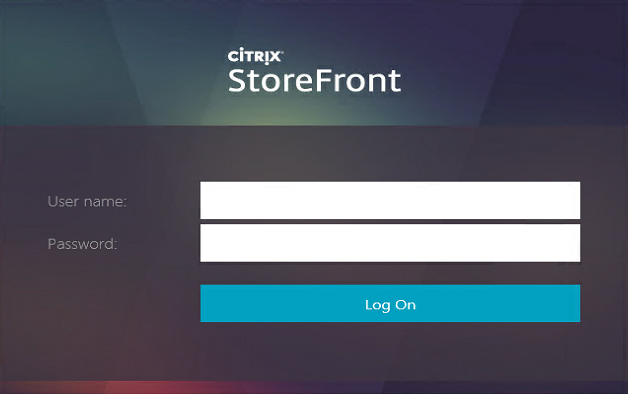 Make sure that when you are finished you replicate the changes to the other StoreFront server(s).
Change the Default text#
To change the text you can edit the language resource files located in “C:\inetpub\wwwroot\Citrix\Store>Auth\App_Data\resources\ExplicitFormsCommon.en.resx” Depending on the language you have configured for your browser a corresponding file will be selected. So make sure you change all the files you or your users will use. 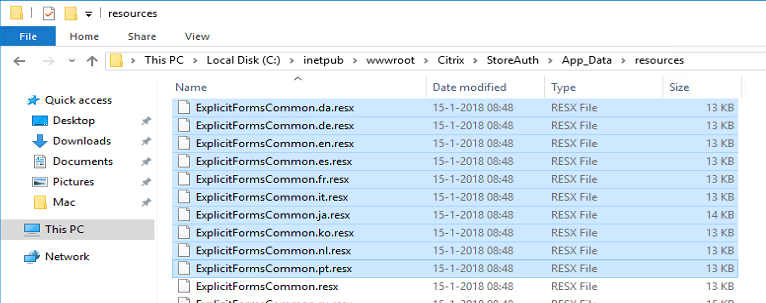 Search for the text “<data name=“DomainUserAssistiveText” xml:space=“preserve”>” and change the text between “<value>TEXT</value>”
  <data name="DomainUserAssistiveText" xml:space="preserve">
    <value>Your own custom text</value>
  </data>
If the text is not directly visible execute a iisreset to force an update. Make sure that when you are finished you replicate the changes to the other StoreFront server(s).