Today I want to release an early (beta) version of a new tool I created, “OTP4ADC” With this tool you can add, remove or change the native OTP tokens used within your Citrix ADC, previously called NetScaler.
It’s a powershell script but when you run it a GUI will be shown.

There are currently many excellent articles available that explains how to setup the native OTP functionality and how it works. So I won’t go into those details here.
While setting up the native OTP functionality you will have to choose an Active Directory user attribute where the native OTP token(s) also called the “secret” will be stored. Initial suggestion is the “userParameters” attribute. I’ve used this attribute name as default for this script. But you can change it to whatever you are using for example “extensionAttribute1”.
Please note that when managing other users OTP tokens you must have administrative (AD) permissions to read/write the given attribute and run the script on a domain joined member machine, for example your management server/desktop.
This script uses two PowerShell modules:
- ActiveDirectory; This is a module that must be installed as a feature
Install-WindowsFeature RSAT-AD-PowerShell- QRCodeGenerator; This is a PowerShell Gallery module that needs to be installed (the script can also install this module). Without this module the script has no ability to generate a QR image.
Install-Module -Name QRCodeGeneratorTo show the GUI you can just run this script without any parameters. You can however specify some parameters. These values will be prefilled in the GUI like the attribute or portal/gateway fqdn name.
Example:
.\OTP4ADC.ps1 -attribute "extensionAttribute1" -GatewayURI "gw.domain.com"Run the script and use “extensionAttribute1” as attribute name and “gw.domain.com” as the Gateway URI
How to work with the tool?

The GUI has 3 groups, “User” (3) where the user can be found/selected
“TOTP” (4) where a secret can be generated and “QR” (5) where the QR with the selected secred can be shown/exported.
To start using the GUI you will have to find a user, type a (partial) username in the “Username”-field (6) and press [Enter] or click the “Search”-button (7). One or more matches will be shown, select the User object you want to manage. If the user has any pre-existing OTP-Secrets they will be shown in the OTP view.
If you for example want to delete one OTP-Secret, select the one you want to delete (9) and click the “Delete”-button (10). To save click the “Save”-button (11).
If you want to load the OTP-Secret, select the one you want to load (9) and click the “Load”-button (10). The Secret will be shown in the Secret field (14).
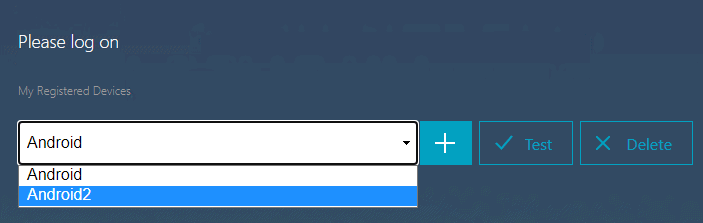
If you want to generate a new OTP-Secret, click the “Generate Secret”-button (13) add a “Device Name” for this secret (15) and click the “Add”-button (16). The “Device Name” is the name that will be shown when visiting the manageotp site (e.g. https://portal.domain.com/manageotp).
To generate a QR for the new or loaded OTP-Secret you must have filled the “Gateway fqdn”-field (2) you can do this manually or by parameter as explained earlier. When ready click the “Generate QR”-button (17) if all goes well a QR Code will be shown (5).
You can export the QR by clicking the “Export QR”-button (18) for example to send to a user if they cannot setup or configure it by themselves.
Maybe more features will be added on time. But for now this is it.
You can find the latest version on GitHub: https://github.com/j81blog/OTP4ADC
Please note that everything is on your own risk, test and use this tool carefully as this will make changes to your user! Please don’t blame me if anything goes wrong. This tool is in its early (beta) stages and please reach out to me via Github, Slack, twitter or mail if you have issues or ideas.
comments