
Recently I needed to script some actions for a VM on Nutanix AHV. I wanted to share with you some of the commands I found and used. I created a small function (Wait-NTNXTask) that verifies the task and waits until the task is finished. Pleas note that this is optional and not required to run the commands specified in this blog.
To start with Nutanix AHV and PowerShell you need to install the PowerShell Cmdlets. You can find the snap-ins when you click on your name and select “Download Cmdlets Installer” 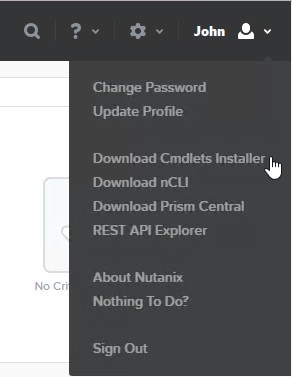 Add the snap-ins to your script or session:
if ([string]::IsNullOrEmpty($(Get-PSSnapin -Name NutanixCmdletsPSSnapin -Registered -ErrorAction SilentlyContinue))) {
    if (Test-Path "C:\Program Files (x86)\Nutanix Inc\NutanixCmdlets\powershell\import_modules\ImportModules.PS1") {
        . "C:\Program Files (x86)\Nutanix Inc\NutanixCmdlets\powershell\import_modules\ImportModules.PS1"
    } else {
        Write-Error "Could not load NutanixCmdletsPSSnapin"
    }
} else {
    if ([string]::IsNullOrEmpty($(Get-PSSnapin -Name NutanixCmdletsPSSnapin -ErrorAction SilentlyContinue))) {
        Add-PSSnapin NutanixCmdletsPSSnapin
    }
}
If you want to view all the commands associated to “NutanixCmdletsPSSnapin” run the following command:
Get-Command -PSSnapin NutanixCmdletsPSSnapin | Group-Object Noun | Select-Object Count,Name,@{Name="Verb"; Expression = {$_.Group.Verb -join ","}} | Sort-Object NameView the Cmdlet (version) information:
Get-NTNXCmdletsInfoBefore we can make changes we need to create a connection:
$hypervisorURI = "nutanixcluster.domain.local"
$userName = "john"
$password = ConvertTo-SecureString -String "SuperSecretP@ssw0rd" -AsPlainText -Force

# Ensure previous Nutanix Sessions are disconnected
Disconnect-NTNXCluster *

#Connect a new Nutanix Session
$connection = Connect-NutanixCluster -Server $hypervisorURI -UserName $username -Password $password -AcceptInvalidSSLCerts -ForcedConnection
NOTE: If you receive the following error “The remote server returned an error: (401) Unauthorized.” You will need to reconnect. May be that the connection has timed out. Get the VM so we can use the ID’s:
$vm = Get-NTNXVM -SearchString $vmNameCreate a new snapshot for a given VM:
$snapshotName = "SnapshotName"
$newSnapshot = New-NTNXObject -Name SnapshotSpecDTO
$newSnapshot.vmuuid = $vm.uuid
$newSnapshot.snapshotname = $snapshotName
$task = New-NTNXSnapshot -SnapshotSpecs $newSnapshot
Wait-NTNXTask -taskUuid $task.taskUuid -silent
Retrieve all the available snapshots for a given VM:
$snapshots = Get-NTNXSnapshot | Where-Object {$_.vmUuid -eq $vm.uuid}Get a particular snapshot for a given VM, if there are multiple snapshots with the same name all will be returned. In this example we will retrieve the last available snapshot:
$snapshotName = "SnapshotName"
$snapshot = Get-NTNXSnapshot | Where-Object {($_.vmUuid -eq $vm.uuid) -and ($_.snapshotname -eq $snapshotName)} | Select-Object -Last 1
Revert back to a snapshot for a given VM:
$snapshotName = "SnapshotName"
$snapshot = Get-NTNXSnapshot | Where-Object {($_.vmUuid -eq $vm.uuid) -and ($_.snapshotname -eq $snapshotName)} | Select-Object -First 1
$task = Restore-NTNXVirtualMachine -Vmid $vm.vmId -SnapshotUuid $snapshot.uuid
Wait-NTNXTask -taskUuid $task.taskUuid -silent
Removing one or more snapshots for a given VM:
$snapshotName = "SnapshotName"
$snapshots = Get-NTNXSnapshot | Where-Object {($_.vmUuid -eq $vm.uuid) -and ($_.snapshotname -eq $snapshotName)}
Foreach ($snapshot in $snapshots){
    Write-Verbose "Removing snapshot:$($snapshot | Select-Object snapshotName,uuid | Format-List | Out-String)" -Verbose
    $task = Remove-NTNXSnapshot -Uuid $snapshot.uuid
    Wait-NTNXTask -taskUuid $task.taskUuid -silent
}
You can also add or remove disk to a given VM. Below is a working example how to remove disks and add them again with the same parameters:
$CurrentDisks = Get-NTNXVMDisk -Vmid $vm.vmId -IncludeDiskSizes | Where-Object {$_.isCdrom -eq $false}
$CurrentDisks = $CurrentDisks | Sort-Object id
If(-not [string]::IsNullOrEmpty($CurrentDisks)) {
    #Remove Disk(s)
    Foreach ($CurrentDisk in $CurrentDisks){
        Write-Verbose "Removing disk: $($CurrentDisk.id) with size: $($CurrentDisk.vmDiskSize / 1GB)GB" -Verbose
        $task = Remove-NTNXVMDisk -Vmid $vm.vmId -Diskaddress $CurrentDisk.id
        Wait-NTNXTask -taskUuid $task.taskUuid -silent
    }
    #Add (new) disks with the same specification
    Foreach ($CurrentDisk in $CurrentDisks){
        Write-Verbose "Creating disk specification. Disksize: $($CurrentDisk.vmDiskSize / 1GB)" -Verbose
        $diskSpecCreate = New-NTNXObject -Name VmDiskSpecCreateDTO
        $diskSpecCreate.containerid = $CurrentDisk.containerId
        $diskSpecCreate.size = $CurrentDisk.vmDiskSize
        Write-Verbose "Specification:$($diskSpecCreate | Select-Object containerId,size | Format-List | Out-String)" -Verbose
        $newVMDisk =  New-NTNXObject –Name VMDiskDTO
        $newVMDisk.vmDiskCreate = $diskSpecCreate
        $task = Add-NTNXVMDisk -Vmid $vm.vmId -Disks $newVMDisk
        Wait-NTNXTask -taskUuid $task.taskUuid -silent
    }
}
You can also manipulate the CD-ROM drive attached to your VM to mount or un-mount an ISO file. First we need to retrieve the details for the CD-ROM drive attached to a given VM:
$isoDisk = Get-NTNXVMDisk -Vmid $vm.vmId | Where-Object {$_.isCdrom -eq $true}It can be that you have multiple CD-ROM drives attached to a given VM. Make sure you have selected only one. In the next example we will check if there are multiple drives, if so we’ll select the first one. (You can make your selection as you see fit)
$isoDisk = Get-NTNXVMDisk -Vmid $vm.vmId | Where-Object {$_.isCdrom -eq $true} | Select-Object -First 1To check if a CD-ROM drive already contains an image or is empty:
$isoDisk.isEmptyTo list and get the names of all the available ISO files uploaded you can run the following command
Get-NTNXImage | Where-Object {$_.imageType -eq "ISO_IMAGE"} | Select-Object nameTo mount an ISO to a (existing) CD-ROM drive.
#Specify the name of the ISO and retrieve the object
$isoImageName = "Windows 10 Business Editions 1803 EN"
$isoImage = (Get-NTNXImage | Where-Object {$_.name -eq $isoImageName})

#Create new objects with the required changes
$diskSpecClone = New-NTNXObject -Name VMDiskSpecCloneDTO
$diskSpecClone.vmDiskUuid = $isoImage.vmDiskId
$diskUpdateSpec = New-NTNXObject -Name VMDiskUpdateSpecDTO
$diskUpdateSpec.vmDiskClone = $diskSpecClone

#Write the changes to the VM
$task = Set-NTNXVMDisk -Vmid $vm.vmId -Diskaddress $isoDisk.id -UpdateSpec $diskUpdateSpec
Wait-NTNXTask -taskUuid $task.taskUuid -silent
To un-mount an ISO attached the CD-ROM drive:
$diskUpdateSpec = New-NTNXObject -Name VMDiskUpdateSpecDTO
$diskUpdateSpec.isEmpty = $true
$task = Set-NTNXVMDisk -Vmid $vm.vmId -Diskaddress $isoDisk.id -UpdateSpec $diskUpdateSpec
Wait-NTNXTask -taskUuid $task.taskUuid -silent
If you want NIC details, for example if you want to know the MAC Address of a given VM:
Get-NTNXVMNIC -Vmid $vm.vmIdAnd finally how to turn on or off a given VM. Power on a given VM:
$task = Set-NTNXVMPowerOn -Vmid $vm.vmId
Wait-NTNXTask -taskUuid $task.taskUuid -silent
Power off a given VM:
$task = Set-NTNXVMPowerOff -Vmid $vm.vmId
Wait-NTNXTask -taskUuid $task.taskUuid -silent
Specifying the transition, for example to nicely shutdown a given VM:
$task = Set-NTNXVMPowerState -Vmid $vm.vmId -Transition ACPI_SHUTDOWN
Wait-NTNXTask -taskUuid $task.taskUuid -silent
The following Transitions can be specified:
- ACPI_REBOOT
- ACPI_SHUTDOWN
- OFF
- ON
- PAUSE
- POWERCYCLE
- RESET
- RESUME
- SUSPEND
Recently Kees Baggerman informed me that Nutanix was working on some new PowerShell Cmdlets. Unfortunately I didn’t had the time to look at them. Hope this will help you.
comments