During a project I’m currently working on, with Windows 10, Citrix Xendesktop 7.9, XenServer 7.0 and RES ONE Workspace 2015 SR2 I stumbled upon a issue with RES ONE Workspace and the pinning of items in the Start Menu. I noticed that sometimes my Start Menu was empty, while I had items pinned when I logged off!? After some investigation with an engineer from RES Software, we managed to reproduce the issue in a closed test environment. At this point RES can try to fix the issue and at the time of writing no known solution is available. We still need to verify but as far as we know the issue is also still in the new version RES ONE Workspace 2016. We still needed a filled Start Menu for the time being, because currently there is no known date for the possible fix… So I created a PoSh script that will fill the Start Menu. (for the 2nd time, after the RES composer is finished) Yes I know not very pretty solution but it gets the job done and it’s a temporary fix. So here is the script I’ve made. (Building block is also available at the end for download)
<#
.SYNOPSIS
    Restore pinned items in Winows 10 Start Menu.
.DESCRIPTION
    This script was build to (temporarily) fix a issue with RES Workspace and pinning items in the Start menu of Windows 10.
    In some occasions (Non-Persistent environments) it could happen that the Start Menu was empty after login while the xml file contained items.
    Currently this issue is being examined by RES and while they try to fix this issue this script can fill the Start Menu for you, so the users have a filled Start Menu.
.NOTES
    File Name  : PinStartItems.ps1
    Author     : John Billekens - blog.j81.nl
    Requires   : Windows 10
.LINK
    http://blog.j81.nl
.EXAMPLE
    .\PinStartItems.ps1
.EXAMPLE
    powershell.exe -ExecutionPolicy Bypass .\PinStartItems.ps1
#>

[CmdletBinding()]
param ()

function Query-ShellExperienceHost {
    [cmdletbinding()]
    param (
        [string]$Username
    )
    # Get ShellExperienceHost process info for the user specified
    $process = Get-Process -IncludeUserName -ErrorAction SilentlyContinue | Where-Object { ($_.Username -eq $UserName) -AND ($_.ProcessName -like "ShellExperienceHost")}
    if (-not ([string]::IsNullOrEmpty($Process.Id))) {
        # Get thread info and get active threads
        $query = "SELECT ThreadState,ThreadWaitReason,ProcessHandle FROM Win32_Thread WHERE ProcessHandle = $($process.Id)"
        $oThread = Get-CimInstance -Query $query
        $out = New-Object psobject -Property @{
            SessionID = $process.SessionId
            ProcessID = $process.Id
            ActiveThreads = ($oThread | Where-Object { (-not ($_.ThreadState -eq 5)) -OR (-not ($_.ThreadWaitReason -eq 5)) }).Count
        }
    }
    return $out
}

# Create eventlog item "PinStartItems"
New-EventLog -LogName Application -Source PinStartItems -ErrorAction SilentlyContinue

# Get current user
$sUserName = & $env:Systemroot\System32\whoami.exe

try {
    # Get ShellExperienceHost process data
$iBreak=0
    while ($iBreak -ne 10){
        # Sometimes it can happen the proces isn't available yet, it will wait until ready (max 30sec)
        $oOutput = Query-ShellExperienceHost -UserName $sUserName
        if (-not ([string]::IsNullOrEmpty($oOutput.SessionId))) {
            Start-Sleep -m 500
            Break
        } else {
            $iBreak++
            Start-Sleep -s 3
        }
    }
    if ($iBreak -ge 10) {
        Throw "ShellExperienceHost wasn't running on time"
    }
    # Specify the exported file (when not using RES Workspace, copy the exported start layout file in xml format locally first)
    $tilefile="$($env:LOCALAPPDATA)\RES\WM\$($oOutput.SessionId)\WMTileFile.xml"
    if (test-path $tilefile) {
            # Set policy to import the start layout
            $sRegPath = "HKCU:\SOFTWARE\Policies\Microsoft\Windows\Explorer"
            if (-not (Test-Path -Path $sRegPath)) {
                New-Item -Path $sRegPath -Force | Out-Null
            }
            New-ItemProperty -Path $sRegPath -Name LockedStartLayout -Value 1 -PropertyType DWORD -Force | out-null
            New-ItemProperty -Path $sRegPath -Name StartLayoutFile -Value $tilefile -PropertyType String -Force | out-null
            # Kill the process so the layout can be applied
            Stop-Process -Id $oOutput.ProcessID
            $iBreak=0
            while ($iBreak -ne 10){
                # Sometimes it can happen the proces isn't available yet, it will wait until ready (max 30sec)
                $oOutput = Query-ShellExperienceHost -UserName $sUserName
                if (($oOutput.ActiveThreads -eq 0) -and (-not ([string]::IsNullOrEmpty($oOutput.ProcessID)))) {
                    Start-Sleep -m 500
                    Break
                } else {
                    $iBreak++
                    Start-Sleep -s 3
                }
            }
            if ($iBreak -ge 10) {
                Throw "ShellExperienceHost wasn't ready in time"
            } else {
                # Remove the policy items to make it possible to pin new items
                Remove-ItemProperty -Path $sRegPath -Name LockedStartLayout -Force | out-null
                Remove-ItemProperty -Path $sRegPath -Name StartLayoutFile -Force | out-null
                Stop-Process -Id $oOutput.ProcessID
            }
            Write-EventLog -LogName "Application" -Source "PinStartItems" -EventID 1 -EntryType Information -Message "`"$sUserName`" ($($oOutput.SessionId)): Restoring pinned items to the Start Menu was successfull" -Category 0
    } else {
        # The xml file was not found at the given location
        Write-EventLog -LogName "Application" -Source "PinStartItems" -EventID 2 -EntryType Warning -Message "`"$sUserName`" ($($oOutput.SessionId)): File `"$tilefile`" was not found." -Category 0
    }
} catch {
    # An error was occured, log to eventlog
    $errmessage = "`"$sUserName`" ($($oOutput.SessionId)): Restoring pinned items (`"$tilefile`") to the Start Menu was failed.`r`n`r`nError:`r`n$(($_.Exception.Message) -join [Environment]::NewLine)"
    Write-EventLog -LogName "Application" -Source "PinStartItems" -EventID 5 -EntryType Error -Message $errmessage -Category 0
}
I added this script to the Custom Resources in RES ONE Workspace (Administration / Custom Resources) in the directory Scripts.  Create a new shortcut under Composition / Applications. It doesn’t matter where as we don’t create a visible shortcut in the users Start Menu.
  Add the command-line parameters for PowerShell.
%systemroot%\System32\WindowsPowerShell\v1.0\powershell.exe -ExecutionPolicy Bypass %rescustomresources%\Scripts\PinStartItems.ps1 Disable the creation of any shortcut in the users environment.
  Make sure that the application is run automatically and minimized.
 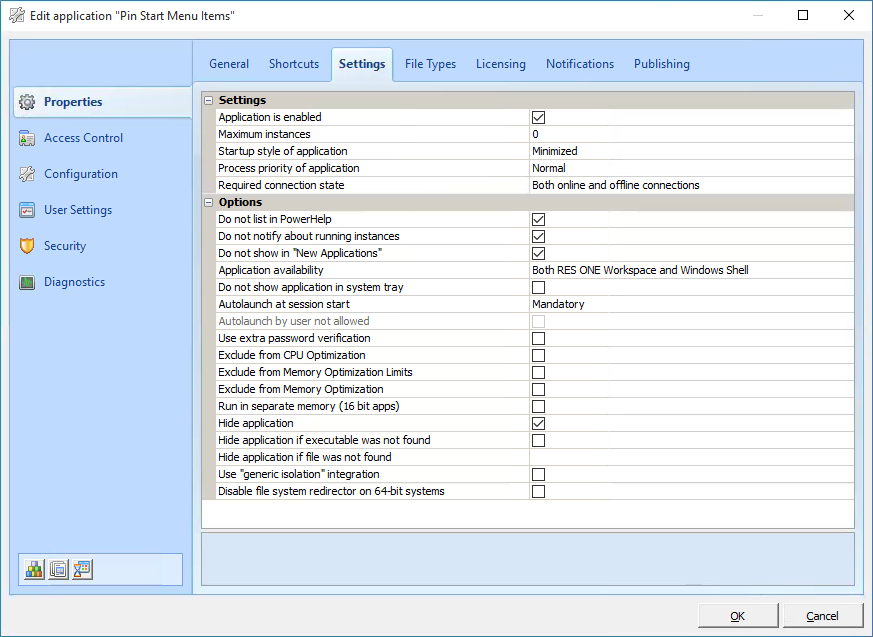 Run it for all users or change accordingly.
  Authorize the file when needed.
  And don’t forget to add dynamic privileges.
  At every login an entry will be made in the Application Event log so you can see if it ran ok (or if an error had occurred).
  So that’s it. Hope I can make somebody happy with this post. Download RES ONE Workspace BuildingBlock EDIT: 18-08-2016 Script updated, added some extra checks.
comments